You do not need to wrestle with complicated TV menus to watch your own IPTV playlist on Android TV or Google TV. A compatible player, a valid M3U/M3U8 URL or Xtream Codes login, and a stable connection are enough. This guide walks from installation to EPG and playback checks without the guesswork.
What you need before you start
Confirm that you own the playlist or have permission to access its streams. IPTV player apps do not sell channels; they display the source you add.
Keep the login details nearby and connect the TV before opening the app.
- An Android TV or Google TV device
- An M3U/M3U8 URL or Xtream server URL, username and password
- Ethernet or a reliable 5 GHz Wi‑Fi connection
- An up-to-date IPTV player
1. Install an IPTV player on your TV
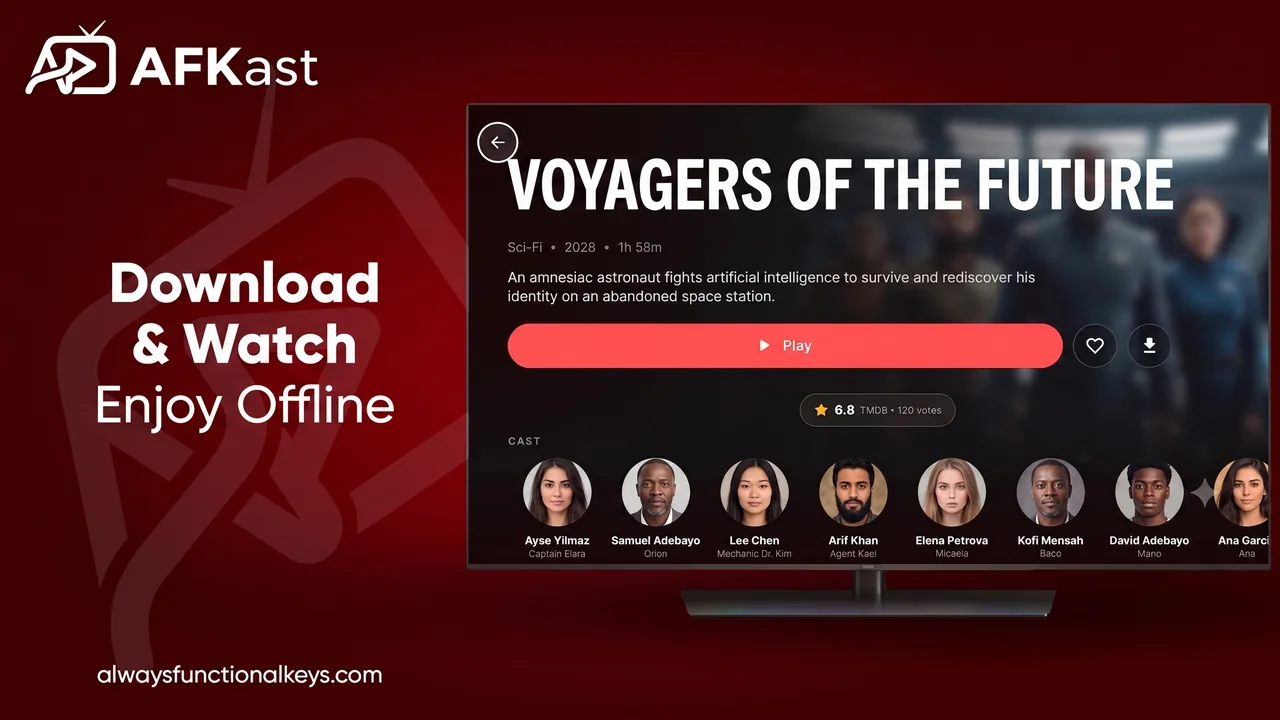
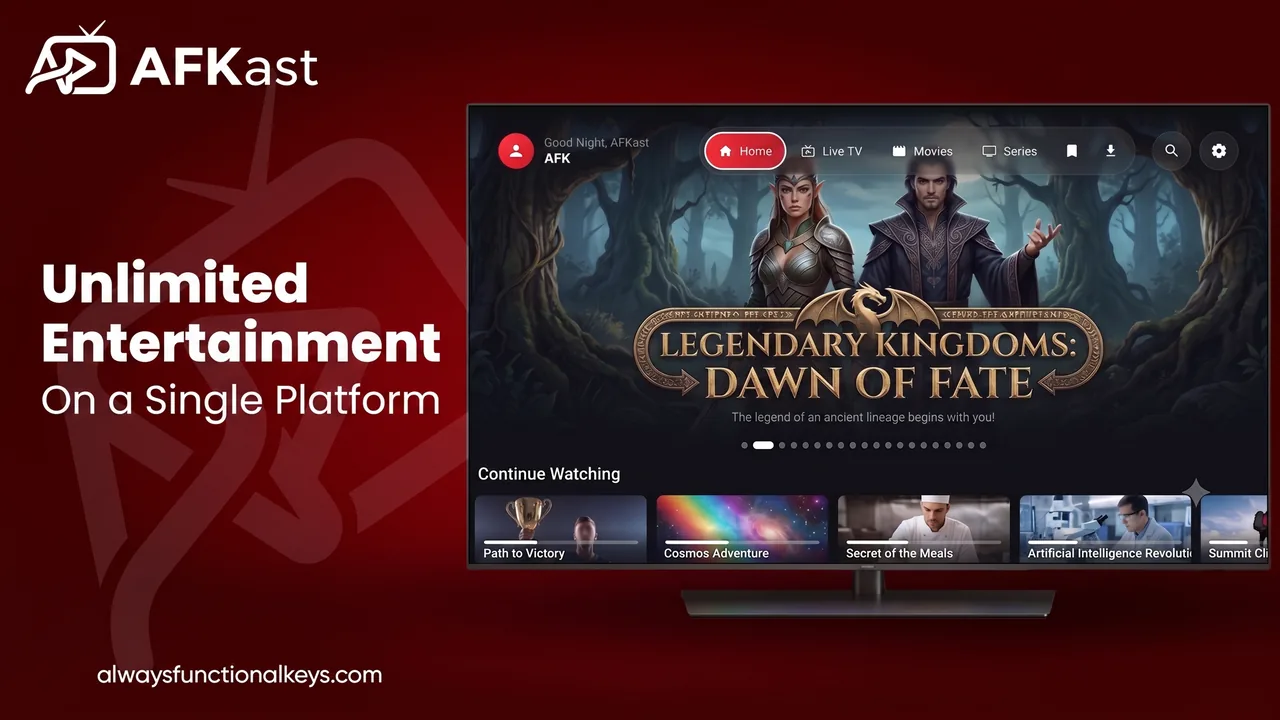
Open the app store on your TV, search for AFKast and install it. On first launch, you will see a TV-friendly interface designed for remote control navigation. Download apps only from trusted sources and grant only the permissions that are needed.
2. Add your playlist with M3U or Xtream Codes
Choose M3U/M3U8 when you received one long URL. Choose Xtream Codes when you have a server address, username and password. Xtream logins can provide cleaner categories, VOD sections and EPG mapping when the server supports them.
Typing a long URL with a remote is error-prone. Use AFKast's cross-device options when available, and check for spaces or missing characters before saving.
- Give the playlist a short recognizable name
- Include the complete http:// or https:// prefix
- Let the first synchronization finish before closing the app
3. Check EPG, categories and favorites
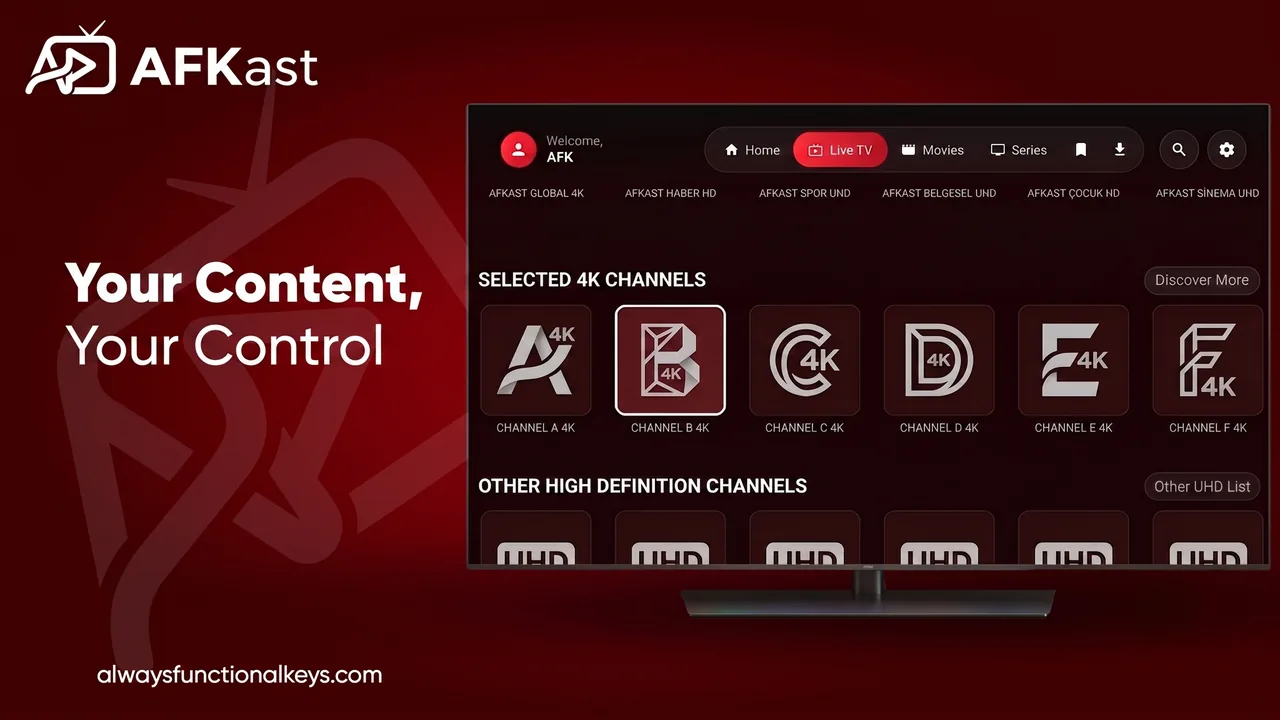
After loading, inspect Live TV, movies and series. If the program guide is empty, confirm the XMLTV URL or whether EPG data is enabled for your Xtream account. Add frequently watched channels to Favorites so you spend less time navigating with the remote.
4. Optimize the first playback
Use Ethernet for 4K streams when possible. For Wi‑Fi, move the device closer to the router and use 5 GHz. Buffering is not always caused by the player; the stream source, home network and device performance all matter. AFKast uses a modern mpv-based playback engine and can use backup streams when the playlist provides them.
Quick troubleshooting checklist
If one channel fails, try another, refresh the playlist and test the same source on a second device. This quickly separates an app problem from a network or source problem.
- Are the app and TV firmware current?
- Is the device date and time set automatically?
- Did your M3U or Xtream credentials change?
- Is a VPN or custom DNS slowing the connection?
Read these after setup
❓ Frequently asked questions
Is installing IPTV on Android TV legal?
IPTV technology and player apps are legal. You are responsible for using streams for which you have the required access and viewing rights.
Should I use M3U or Xtream Codes?
M3U is convenient for a single-link setup. Xtream Codes can organize categories, VOD and EPG more neatly when your service supports it.
Why does IPTV buffer on Android TV?
Weak Wi‑Fi, network congestion, limited device memory or the source server can cause buffering. Start by testing Ethernet and another channel.
Turn your TV into a better playlist screen
Explore AFKast for M3U, Xtream Codes, EPG and a remote-friendly modern interface. Add your own legal playlist and finish setup in minutes.