

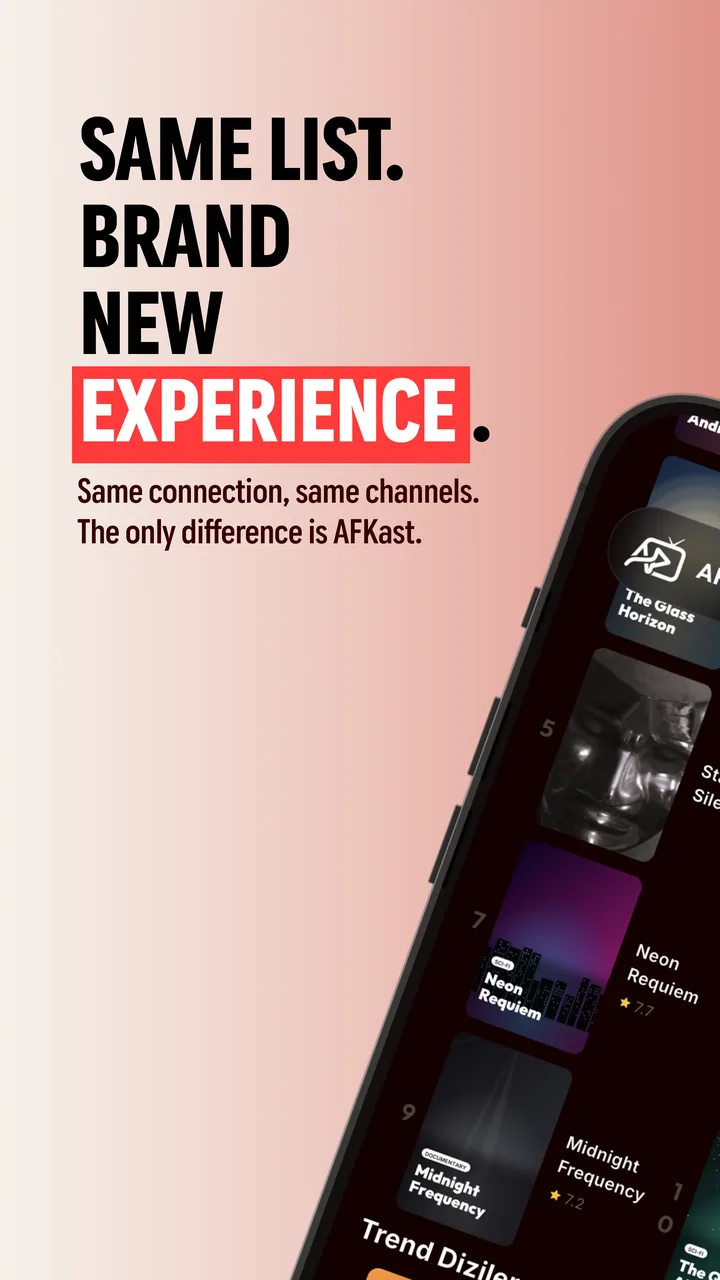
Why AFKast is a great IPTV player for Android
What makes or breaks IPTV on a phone is how efficiently the app decodes video and how well it organizes a huge playlist. AFKast is built on mpv, a proven open-source playback engine. H.264, H.265/HEVC and AV1 streams are decoded with your device's hardware acceleration, which means less strain on the processor, slower battery drain and a phone that stays cool through a full match. On compatible devices, 4K, HDR10, HLG and Dolby Vision content plays too.
AFKast is an IPTV player, not a service: it comes with no channels or streams. You add the playlist from your own legal IPTV provider, and the app turns it into live TV, movies and series, with an XMLTV-based EPG that shows what is on now and next. If you want to compare every platform, start with our main IPTV player page.
Installing from Google Play and adding your first playlist
The safest way to get the app is through Google Play: updates arrive automatically and the app signature is verified. Once installed, you can add a playlist in one of two ways:
- M3U / M3U8: Paste the link your provider gave you or pick a .m3u file stored on your phone. For a walkthrough, see how to add an M3U IPTV playlist.
- Xtream Codes: Log in with the server URL, username and password. This usually brings in categories and the VOD library more cleanly; we explain the differences in Xtream Codes vs M3U.
If a playlist will not load, check the link first with our free M3U checker. It quickly tells you whether the problem is in the app or on the provider's side.
Casting from your phone to the TV with Chromecast
Started the game on your phone and want it on the big screen? Tap the Chromecast icon in the player. If your TV has Chromecast built in, or a Chromecast or Google TV device is plugged into it, the stream moves straight there while your phone acts as the remote. For Samsung and LG TVs this is the easiest option today; see our IPTV player for Smart TV page for details.
If your TV runs Android TV or Google TV, installing AFKast directly on the TV gives the best result: IPTV player for Android TV. Instead of typing a long URL with the remote, use the short device code shown on the TV and send your playlist to the device from your phone in seconds.
Tips to save mobile data while streaming
Live streaming means a constant flow of data, and high-resolution channels can eat through a data plan quickly. A few habits make a real difference:
- Prefer Wi-Fi: Save long movies and series for when you are on a wireless network.
- Pick a lighter stream: If your provider offers the same channel in SD, HD and FHD versions, choose the lower resolution on mobile data.
- Download ahead (Pro): Before a trip, download episodes on Wi-Fi and watch them on the road without using data.
- Close what you are not watching: A forgotten PiP window keeps streaming and keeps using data.
- Check Android's Data Saver: If it restricts background data for the app, you may notice stuttering during playback.
Picture-in-Picture and offline downloads (Pro)
With Pro you can shrink the stream into a small floating window and keep using other apps. Offline downloads save the movies and series your provider offers to your device, and you can download an entire season in one tap. Here is how the free and Pro plans compare:
| Feature | Free | Pro |
|---|---|---|
| M3U / Xtream, EPG, multiple profiles | Yes | Yes |
| Chromecast and content enrichment | Yes | Yes |
| Playlists | 1 | Unlimited |
| Cross-device sync | 2 devices | Up to 6 devices |
| Picture-in-Picture | No | Yes |
| Offline downloads | No | Yes |
| Ads | Ad-supported | Ad-free |
| Parental controls (PIN), hidden categories | No | Yes |
Pro is purchased in the app through Google Play: $11.99/year or a one-time $29.99 lifetime license. Buy it once with your account and Pro unlocks on all your devices.
Which Android phones and tablets work best?
AFKast runs on Android phones and tablets that can install apps from Google Play, including Samsung Galaxy, Google Pixel, Motorola, OnePlus and Xiaomi models. The Play Store listing is the most reliable way to confirm your device is compatible. A few general recommendations:
- Keep Android and its security patches as up to date as your device allows.
- A chipset with hardware decoding for HEVC/H.265 and AV1 makes a clear difference with 4K and high-bitrate streams.
- Enough RAM and free storage (especially if you plan to download) keep large libraries smooth.
- On tablets, landscape mode and the wide EPG view are more comfortable for long sessions.
Cross-device sync: start on your phone, finish on the TV
Sign in with your AFKast account and your watch history, favorite channels and settings are stored in the cloud. The free plan syncs across 2 devices, Pro across up to 6. Start an episode on the bus and finish it at home on your tablet or TV right where you stopped.
If streams freeze or stutter, read our IPTV buffering fix guide. If the playlist will not open at all, try the steps in IPTV not working? How to fix it.