

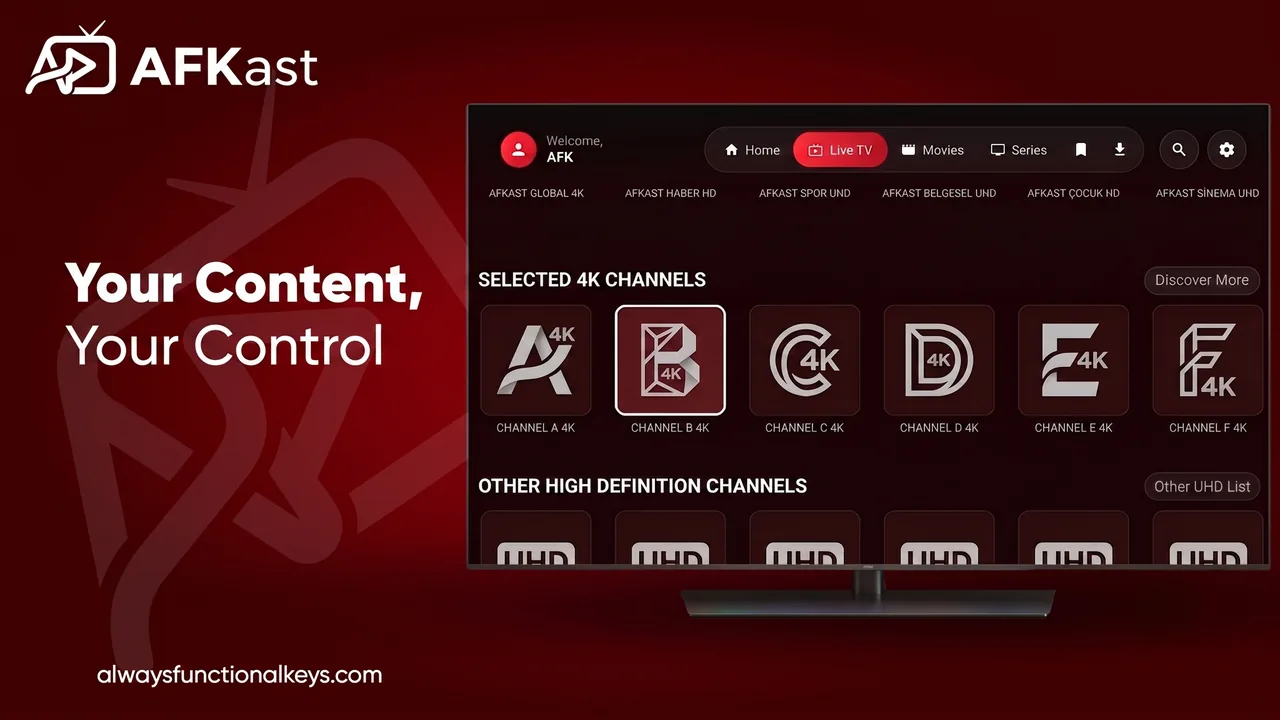
The easiest way to watch IPTV on Android TV
Most people who want to watch IPTV on their TV hit the same wall. Installing an app is easy, but typing an 80-character M3U link or an Xtream Codes server address letter by letter with a remote is painful. One typo and the playlist won't load, so you start over. AFKast was built to remove that problem entirely. The interface on Android TV and Google TV is designed for the D-pad and OK button, and adding a playlist doesn't require the on-screen keyboard at all.
AFKast is an IPTV player: it opens the M3U/M3U8 link, M3U file or Xtream Codes login you get from your own legal IPTV provider and turns it into an organized live TV, movie and series library. To see every platform in one place, visit our IPTV player page.
Send Playlist to Device: stop typing URLs with a remote
The biggest advantage of AFKast on a TV is Send Playlist to Device. It works like this:
- Open AFKast on your TV and go to the add playlist screen. A short device code is displayed.
- On your phone or computer, open the Send Playlist to Device page.
- Enter the code, paste your M3U link, or fill in your Xtream Codes server, username and password.
- Press Send. The playlist loads on your TV within a few seconds.
You paste the long address on your phone and never type a single character on the TV. You can use the same playlist later in the IPTV player for Android on your phone, with favorites carried across devices through cloud sync.
Which devices are supported?
AFKast installs from Google Play on any device running Android TV or Google TV. On Amazon Fire TV, the Android-based Fire OS lets you sideload the APK instead.
| Device | How to install | Notes |
|---|---|---|
| Xiaomi Mi Box, Mi TV Stick and other Android TV boxes | Google Play | Fully remote-friendly interface |
| Chromecast with Google TV, Google TV Streamer | Google Play | 4K HDR depends on the model |
| Nvidia Shield TV / Shield TV Pro | Google Play | Smooth 4K playback on powerful hardware |
| Sony, Philips, TCL, Hisense, Xiaomi TVs with Google TV | Google Play | No extra box needed |
| Amazon Fire TV Stick / Fire TV Cube | APK via Downloader | Compatibility may vary by device model |
| Samsung (Tizen) and LG (webOS) TVs | Native app coming soon | Today via Chromecast or an Android TV box |
If you own a Samsung or LG TV, we explain today's options on our IPTV player for Smart TV page.
Installing on Android TV from Google Play
Installing on Android TV or Google TV is as simple as on a phone. Open Google Play from the home screen (on Google TV, use the "Apps" tab), search for "AFKast" and select Install. The app is added to your home screen, and you can then transfer your playlist with the Send Playlist steps above. For a step-by-step walkthrough with screenshots, read our guide on how to install IPTV on Android TV and Google TV.
Installing AFKast on Fire TV Stick (quick summary)
Amazon Fire TV Stick runs Fire OS, which is based on Android, but AFKast is published on Google Play rather than the Amazon Appstore. That's why Fire TV uses APK sideloading:
- Install the free Downloader app from the Amazon Appstore on your Fire TV.
- Go to Settings → My Fire TV → Developer Options and allow Downloader to install unknown apps.
- In Downloader, enter the address of the AFKast download page, download the Android APK and install it.
Because hardware differs between Fire TV models, compatibility may vary by device model. Full illustrated guide: Fire TV Stick IPTV setup.
EPG grid and 4K HDR playback
When you're flicking through channels on the couch, the EPG answers "what's on now?". AFKast reads the XMLTV guide from your provider and shows channels in a timeline grid, with the current and next programme, so you can jump to a channel directly from the guide. Learn how it works in what is EPG and how to add an XMLTV guide.
For playback, AFKast uses mpv, one of the most respected open-source playback engines. It decodes H.264, H.265/HEVC and AV1 with hardware acceleration and plays 4K, HDR10, HLG and Dolby Vision content on compatible devices such as Nvidia Shield and Chromecast with Google TV. For picture tips, see our guide to smooth 4K HDR IPTV playback.
What to do if streams buffer
Buffering on a TV is usually down to Wi-Fi signal, a busy provider server or codec support on the device. Use an Ethernet cable for your TV box where possible, prefer 5 GHz Wi-Fi, and if your playlist includes backup sources, let AFKast's Auto Failover switch automatically. For more fixes, read our IPTV buffering fix guide.
Free or Pro?
The free plan includes 1 playlist, EPG, multiple profiles, Chromecast and content enrichment, with ads. Pro removes ads and unlocks unlimited playlists, sync across up to 6 devices, parental controls (PIN), custom groups and category hiding. Pro Yearly is $11.99 per year and Pro Lifetime is a one-time $29.99, purchased inside the app. Pro bought with one account works on your phone, computer and TV together.