

IPTV on a Smart TV: start with the operating system
The answer to "how do I install IPTV on my TV?" depends less on the brand and more on the TV's operating system. Even within one brand there can be differences: some Philips models run Google TV/Android TV while others use Titan OS, and some budget brands ship both Android TV and proprietary systems in the same lineup. So the first step is to open Settings > Device Preferences > About (or similar) and check the system name.
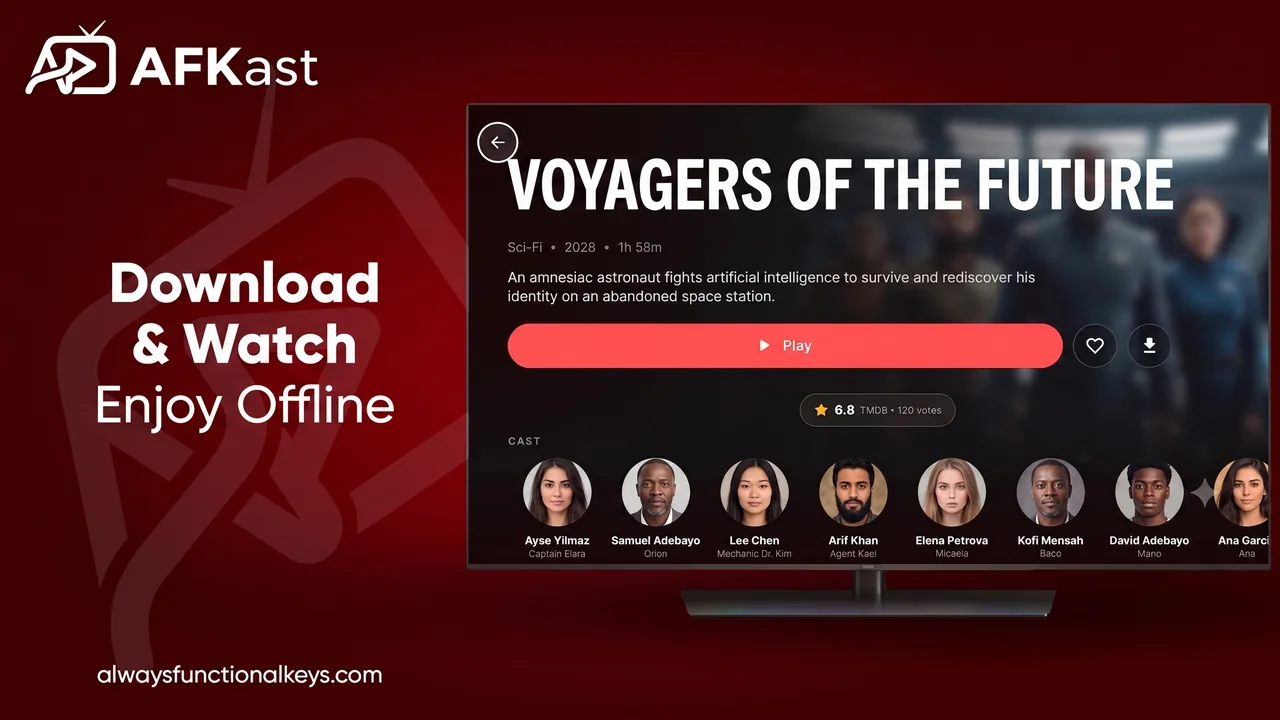
AFKast is an IPTV player. It doesn't host or sell channels. You add the M3U/M3U8 link, M3U file or Xtream Codes login you received from your own legal IPTV provider, and AFKast plays it in a clean, TV-friendly interface. Whatever TV you own, there's a way to use AFKast on the big screen today.
AFKast by TV brand and operating system
| TV brand / operating system | How to watch today | Native app |
|---|---|---|
| Sony, TCL, Hisense, Xiaomi, Philips (Google TV / Android TV) | Install AFKast directly from Google Play | Available |
| Other brands with Google TV/Android TV models | Install directly from Google Play | Available |
| Samsung (Tizen) | Cast from your phone with Chromecast, or add an Android TV/Google TV box via HDMI | Coming soon |
| LG (webOS) | Chromecast casting, or an Android TV/Google TV box via HDMI | Coming soon |
| Philips (Titan OS) | Chromecast casting, or an Android TV/Google TV box via HDMI | Coming soon |
| Any TV with an HDMI port | Plug in Chromecast with Google TV, Google TV Streamer or an Android TV box | Available via the box |
Not sure which group your TV belongs to? If the Google Play Store appears on your home screen, you have Android TV or Google TV and can install AFKast directly.
Installing AFKast on Google TV and Android TV sets
On TVs like Sony Bravia, TCL and Hisense Google TV models, Xiaomi TVs and Philips Android TV sets, it's simple: open the Play Store, search for "AFKast" and install. We cover the full setup on our IPTV player for Android TV page and in the step-by-step guide to installing IPTV on Android TV and Google TV.
When you open the app, a short device code appears on the TV screen. Instead of typing a long M3U address with the remote, go to Send Playlist to Device on your phone, enter the code and send your playlist. It shows up on the TV within seconds.
IPTV on Samsung and LG TVs: what works today
A native AFKast app for Samsung (Tizen) and LG (webOS) is coming soon. If you don't want to wait, there are two reliable options right now:
1. Cast from your phone with Chromecast
Some Samsung and LG models have built-in Chromecast/Google Cast support; if yours doesn't, a plugged-in Chromecast or Google TV Streamer does the same job. Install AFKast as your IPTV player for Android (there's an App Store version for iPhone too), open a channel and tap the cast icon. The stream plays on the TV while your phone works as a remote.
2. Plug an Android TV / Google TV box into HDMI
The most permanent solution is to connect an Android TV box, Chromecast with Google TV, Google TV Streamer or Nvidia Shield to your TV's HDMI port. AFKast installs directly from the Play Store on these devices and turns any TV into a full IPTV player. Using an Amazon Fire TV Stick? See our Fire TV Stick IPTV setup guide; compatibility may vary by device model.
For a detailed comparison of every option, read how to watch IPTV on a Samsung or LG Smart TV.
Why AFKast works well on the big screen
- mpv playback engine: hardware-accelerated decoding of H.264, H.265/HEVC and AV1, with 4K, HDR10, HLG and Dolby Vision on compatible devices.
- EPG (XMLTV) guide: see what's on now and next across your channels, readable from the couch.
- Movies & series library: VOD content enriched with posters, plots, ratings and cast.
- Multiple profiles: everyone in the household keeps their own favorites and watch history.
- Auto Failover: if your playlist includes a backup source, AFKast switches to it automatically when a stream drops.
- Cloud sync: favorites and settings you add on your phone appear on your TV.
To see every platform and feature in one place, visit our main IPTV player page.
Free or Pro?
The free plan is ad-supported and includes 1 playlist, sync across 2 devices, EPG, multiple profiles, Chromecast and content enrichment, which is plenty for many Smart TV users. Go Pro for an ad-free experience, unlimited playlists, sync across up to 6 devices, parental controls (PIN), custom groups and offline downloads: Pro Yearly $11.99/year or Pro Lifetime $29.99 one-time. Purchases happen in the app, and one account unlocks Pro on all your devices, so Pro bought on your phone works on your TV too.
Tips for smooth IPTV on your Smart TV
- Connect your TV or streaming box via Ethernet where possible; on Wi-Fi, prefer the 5 GHz band.
- Keep your TV firmware and the app up to date.
- For 4K/HDR streams, check that both your TV and your box support the format.
- On Apple TV? A tvOS app is coming soon; for current options see our Apple TV IPTV setup guide.