
The Amazon Fire TV Stick is one of the cheapest and most popular ways to turn any TV into a streaming machine. But if you have searched for a "Firestick IPTV setup" guide, you have probably noticed how many of them point to random downloads and sketchy shortcuts. This guide does it the clean way: we install the AFKast IPTV player on a Fire TV Stick step by step, from Developer Options to the Downloader app, and finish by sending your playlist from your phone instead of typing it with the remote.
One thing up front: AFKast is an IPTV player. It does not provide channels, streams or playlists. You add the M3U link or Xtream Codes login you get from your own legal IPTV provider.
Why the Fire TV Stick needs a different setup
Every Fire TV device runs Fire OS, Amazon's operating system built on top of Android. That means most Android apps can technically run on it. The catch is that Fire TV has no Google Play Store; apps come from the Amazon Appstore instead. To get AFKast on a Firestick, you install the official Android APK manually, a process usually called sideloading.
It sounds more technical than it is: a couple of settings and one free helper app. If you also own a regular Android-based TV, our guide to installing IPTV on Android TV and Google TV shows the much shorter route, because there the app comes straight from Google Play.
What you need before you start
- An up-to-date Fire TV: check Settings → My Fire TV → About → Check for Updates.
- A stable internet connection: you will be downloading the APK file during setup.
- Your IPTV details: the M3U/M3U8 URL, or the server address, username and password for Xtream Codes, from your legal provider.
- A phone or computer: you will use it to send the playlist to the TV, so no long URLs on the remote.
Step 1: Unlock Developer Options
On newer Fire OS versions the Developer Options menu is hidden by default; on some versions it is already visible. If you cannot find it, do this:
- Open Settings (the gear icon on the right of the home screen).
- Go to My Fire TV.
- Select About and highlight your device name at the top of the list (for example "Fire TV Stick 4K").
- Press the center (select) button on the remote 7 times in a row. A short message confirms that you are now a developer.
- Go back one screen: Developer Options now appears in the My Fire TV menu.
This works on most current devices, but menu names and positions can vary slightly depending on your Fire OS version.
Step 2: Install the Downloader app
- On the home screen, go to Find (the magnifying glass) and choose Search.
- Type "Downloader" and pick the app with the orange icon published by AFTVnews.
- Press Get or Download to install it for free from the Amazon Appstore.
- When it opens for the first time and asks for file access, choose Allow.
Step 3: Allow Downloader to install unknown apps
- Go to Settings → My Fire TV → Developer Options.
- On current versions, open Install unknown apps, find Downloader in the list and switch it ON.
- On older versions you will see a single toggle called Apps from Unknown Sources; just turn it on.
Step 4: Download the AFKast APK from the official source
Getting the APK only from the official source is the single most important safety step. Modified files shared on forums or mirror sites can contain malware, and you would never know.
- Open Downloader. In the address box on its home tab, type the address of our download page (afkastplayer.com/en/download) and press Go.
- The AFKast download page opens in Downloader's built-in browser. Use the remote to select the Android APK link.
- When the download finishes, the Android installer appears automatically. Select Install.
- Choose Done when it finishes. If Downloader offers to delete the APK file, select Delete to free up storage.
Step 5: Send your playlist from your phone
Typing a long M3U URL letter by letter with a Fire TV remote is slow and error-prone. The Send Playlist to Device feature in AFKast removes that pain completely:
- Launch AFKast on your Fire TV (it appears under Your Apps & Channels).
- On the add-playlist screen, a short device code is shown on the TV.
- On your phone or computer, open the Send Playlist to Device page and enter that code.
- Paste your M3U/M3U8 link, or fill in your Xtream Codes server, username and password, then send.
- Within seconds the playlist lands in AFKast on the TV and your live channels, movies, series and EPG guide start loading.
The whole process at a glance
| Step | Where | Note |
|---|---|---|
| Unlock Developer Options | Settings → My Fire TV → About | On some versions, press the device name 7 times |
| Install Downloader | Find → Search → Amazon Appstore | Free app with an orange icon |
| Allow unknown apps | Developer Options | Downloader only; turn it off afterwards |
| Download the APK | Downloader → AFKast download page | Use only the official Android APK link |
| Install | Android installer screen | Delete the APK file afterwards to save space |
| Add your playlist | Phone/PC → Send Playlist to Device | Enter the TV code, send M3U or Xtream details |
Compatibility: which Fire TV models work?
Because Fire OS is Android-based, the Android version of AFKast can generally be sideloaded on current models such as the Fire TV Stick 4K, Fire TV Stick 4K Max and Fire TV Cube. To be honest about it, though: compatibility and performance can vary by model and Fire OS version. On older or entry-level sticks with less memory, very large playlists may take noticeably longer to load.
AFKast plays video with the mpv engine and, on compatible hardware, uses hardware acceleration for H.264, H.265/HEVC and AV1. Whether you get 4K or HDR depends on both your device and the stream format your provider delivers.
Performance tips for smooth playback on a Firestick
- Close background apps: go to Settings → Applications → Manage Installed Applications and use "Force stop" on apps you are not using.
- Use Ethernet or 5 GHz Wi-Fi: Amazon's Ethernet adapter is the most reliable option; otherwise connect to your router's 5 GHz network and keep the stick within reasonable range.
- Clear the cache: in the same menu, select AFKast and choose "Clear cache". Your playlist is not removed.
- Free up storage: uninstalling apps you never open makes the whole stick feel faster.
- Use the HDMI extender: a stick jammed behind the TV often gets a weaker Wi-Fi signal.
If streams still stutter, the cause is usually the network or the provider's server rather than the player. Our IPTV buffering fix guide walks through the most common causes.
First settings after installation
- Pin it to the home screen: in Your Apps & Channels, highlight AFKast, press the menu button and choose "Move" to put it first in line.
- Check the EPG: if your provider gives you an XMLTV URL, make sure the program guide is filled so you can see what is on now and next.
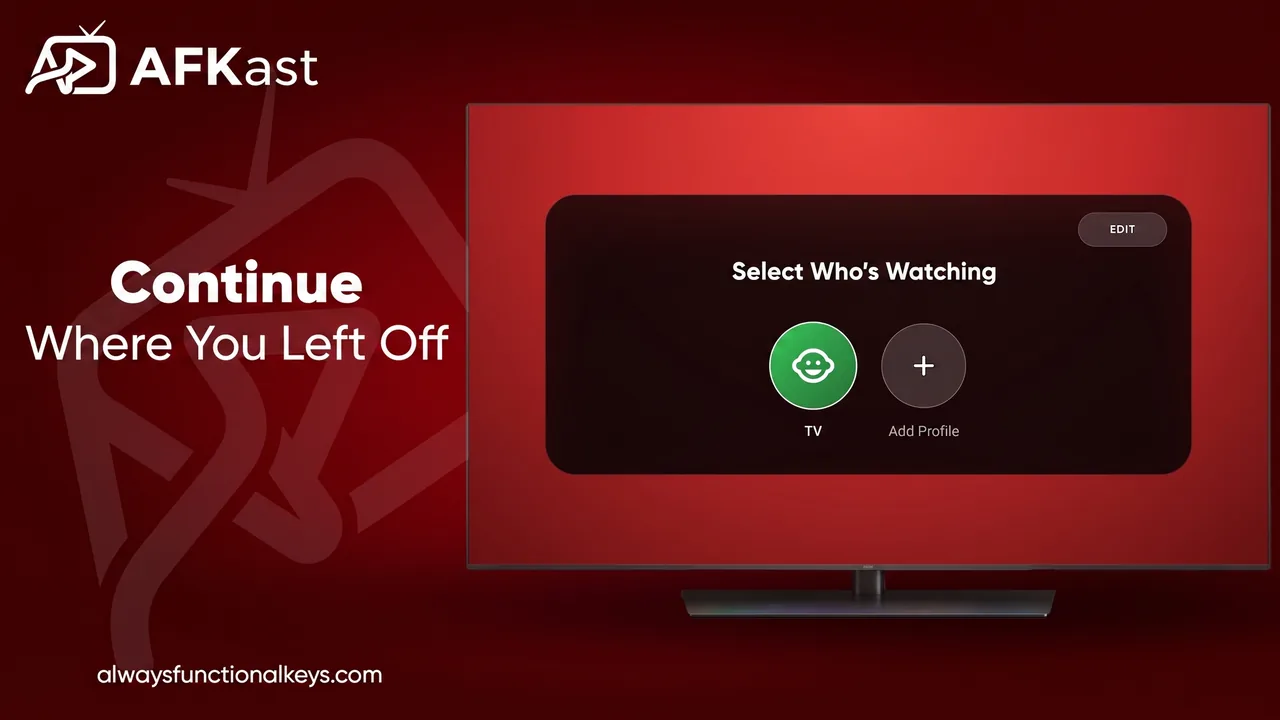
- Create profiles: with multiple profiles, everyone in the house keeps separate favorites and watch history.
- Turn on cloud sync: sign in with the same account on your phone and your favorites and settings follow you between devices.
The alternative: a Google TV box
If you would rather skip sideloading altogether, the smoothest option is an Android TV or Google TV device with the Google Play Store. On a Chromecast with Google TV, an Nvidia Shield or any Google TV box, you install AFKast straight from the store and get updates automatically. See our IPTV player for Android TV page for details.
Using a Samsung or LG TV? A native app is coming very soon; for today's options, check our IPTV player for Smart TV page and the guide on how to watch IPTV on Samsung and LG Smart TVs.
Security reminders
On any device you sideload to, stick to two rules: get APKs only from the official download page, and turn the unknown-apps permission off when you are done. For broader advice on network privacy and VPNs, read our article on IPTV security and VPN usage.
❓ Frequently Asked Questions
Is AFKast available on the Amazon Appstore?
No, AFKast is not currently listed on the Amazon Appstore. You can install it on a Fire TV Stick by sideloading the Android APK from the official download page with the Downloader app.
What if Developer Options is missing on my Fire TV?
Go to Settings → My Fire TV → About, highlight your device name and press the select button 7 times. On some Fire OS versions the menu is already visible, so this step is not needed.
Is sideloading an APK on a Firestick safe?
It is safe as long as the APK comes from the app's official download page. Turning off the unknown-apps permission after installation adds an extra layer of protection.
How do I add my IPTV playlist on Fire TV?
Open AFKast and a device code appears on the TV. Enter that code on the Send Playlist to Device page from your phone, add your M3U link or Xtream Codes login, and the playlist is sent to the TV.
Does AFKast work on every Fire TV model?
It generally works on current models such as the Fire TV Stick 4K, 4K Max and Fire TV Cube, but compatibility and performance can vary by model and Fire OS version.
How do I update AFKast on a Fire TV Stick?
Sideloaded apps do not update automatically. When a new version is released, download the APK again from the official download page with Downloader and install it over the existing app.